User Manual - Maintenance Helpdesk Tickets
1.0 What is a ticket
In Maintenance Helpdesk, tickets are used to track customer service requests. The first time a customer email you (or the company) about something. Each message sent between you and the customer is added to that ticket until the issue is resolved, the customer is happy, and the ticket is finally closed.
So, in a basic sense, a ticket is a thread of messages between you and a customer about a single issue.
2.0 How to create a ticket
Please follow the step below for ticket creation.
- Go to the website https://helpdesk.gloryblitz.com.my/#login
- Sign in with your user ID and password
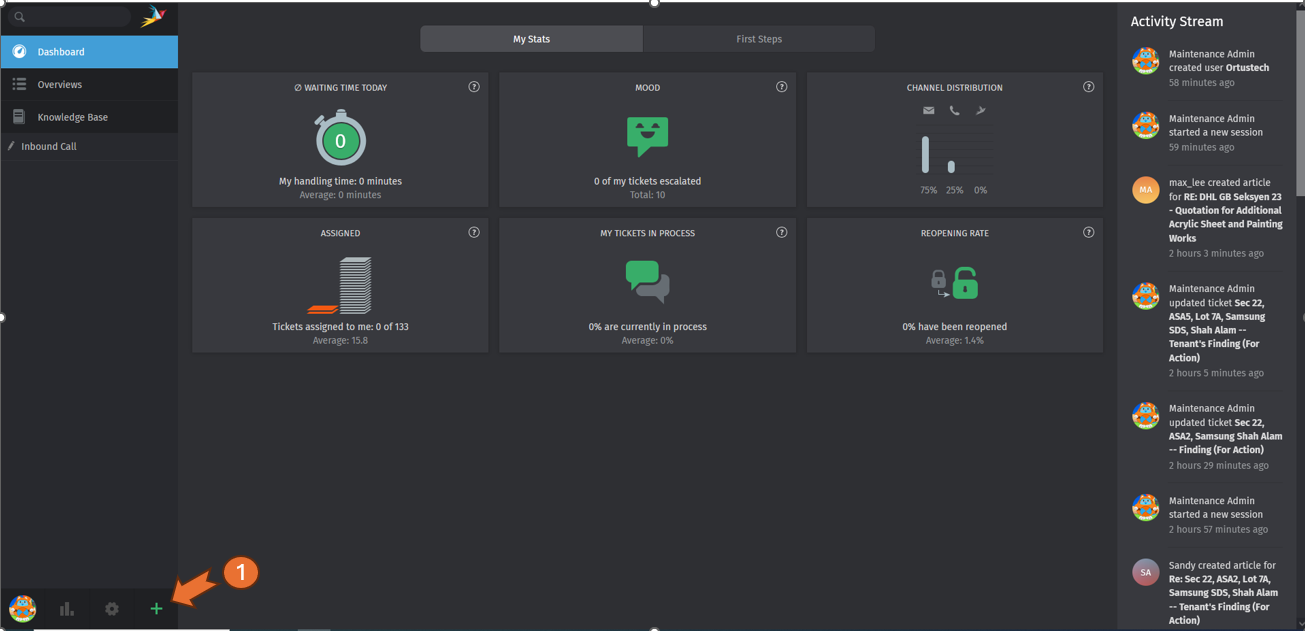
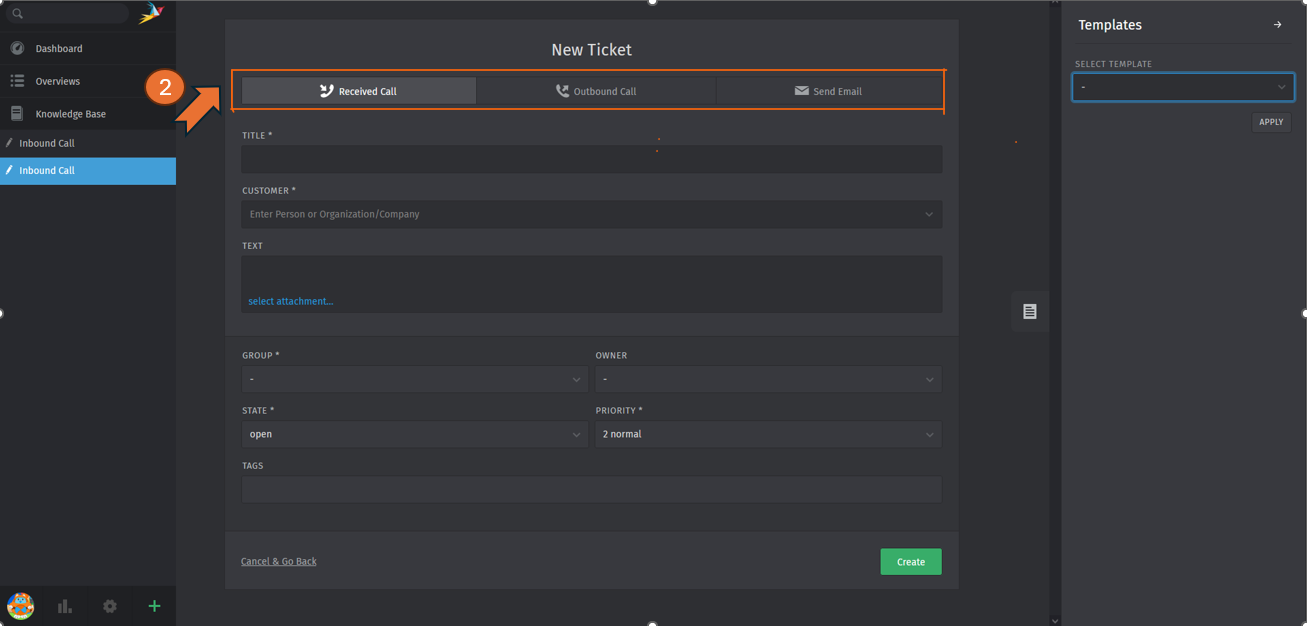
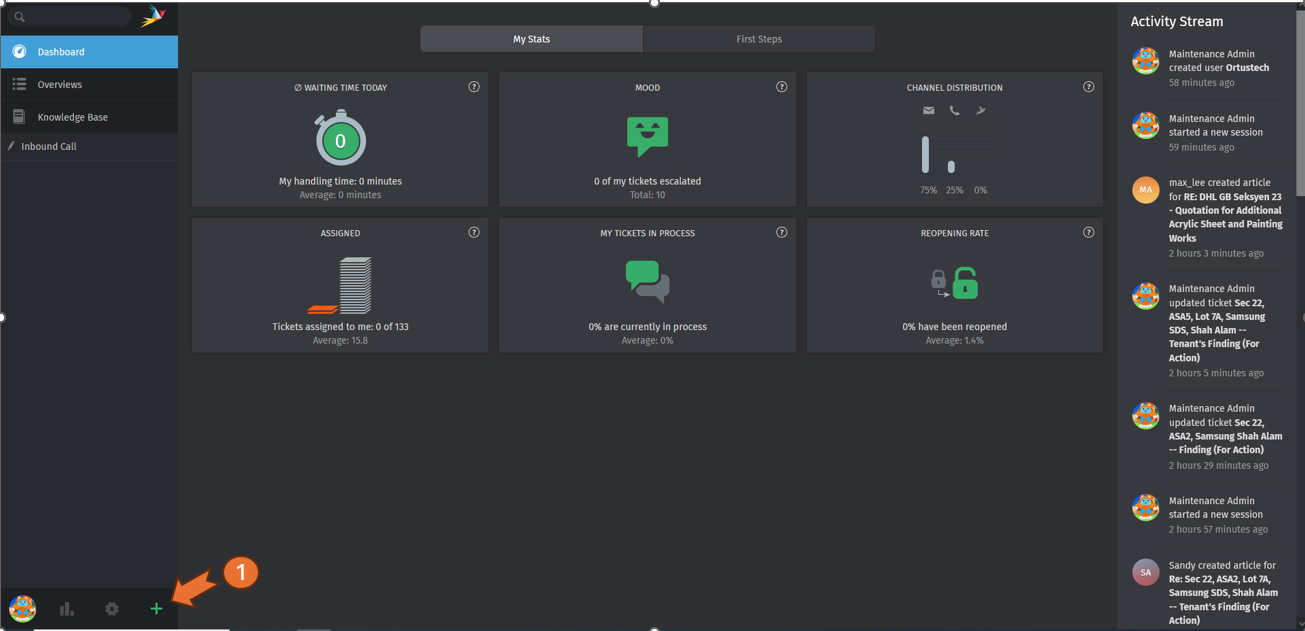
- Click the "+" button and select
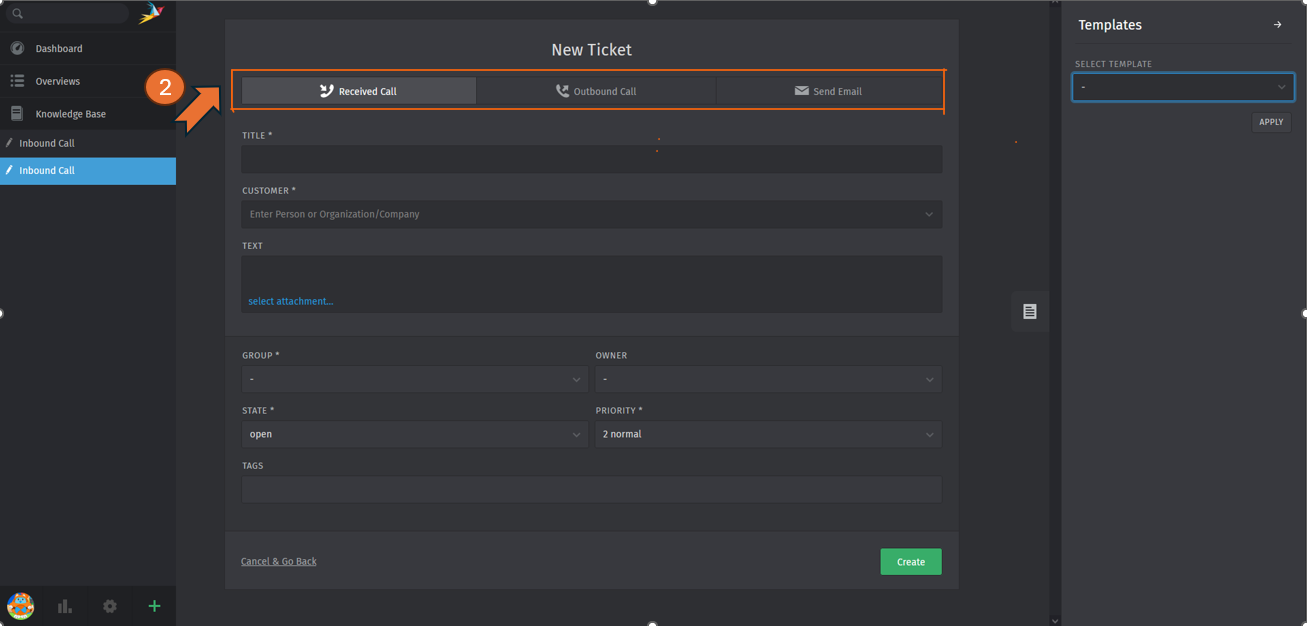
eitherone type of ticket .Received Call for issues initiated by a customer over the phone. Outbound Call for issues initiated by an agent over the phone. Send Email for issues initiated by an agent over email. 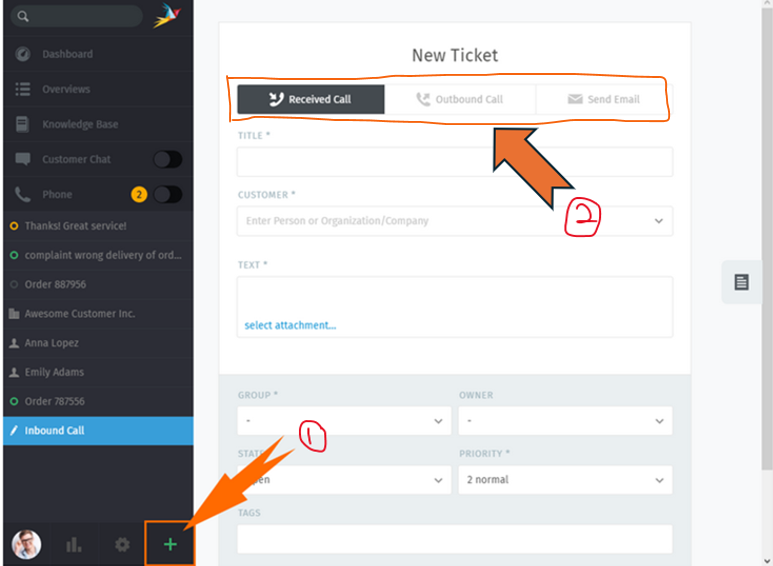
-
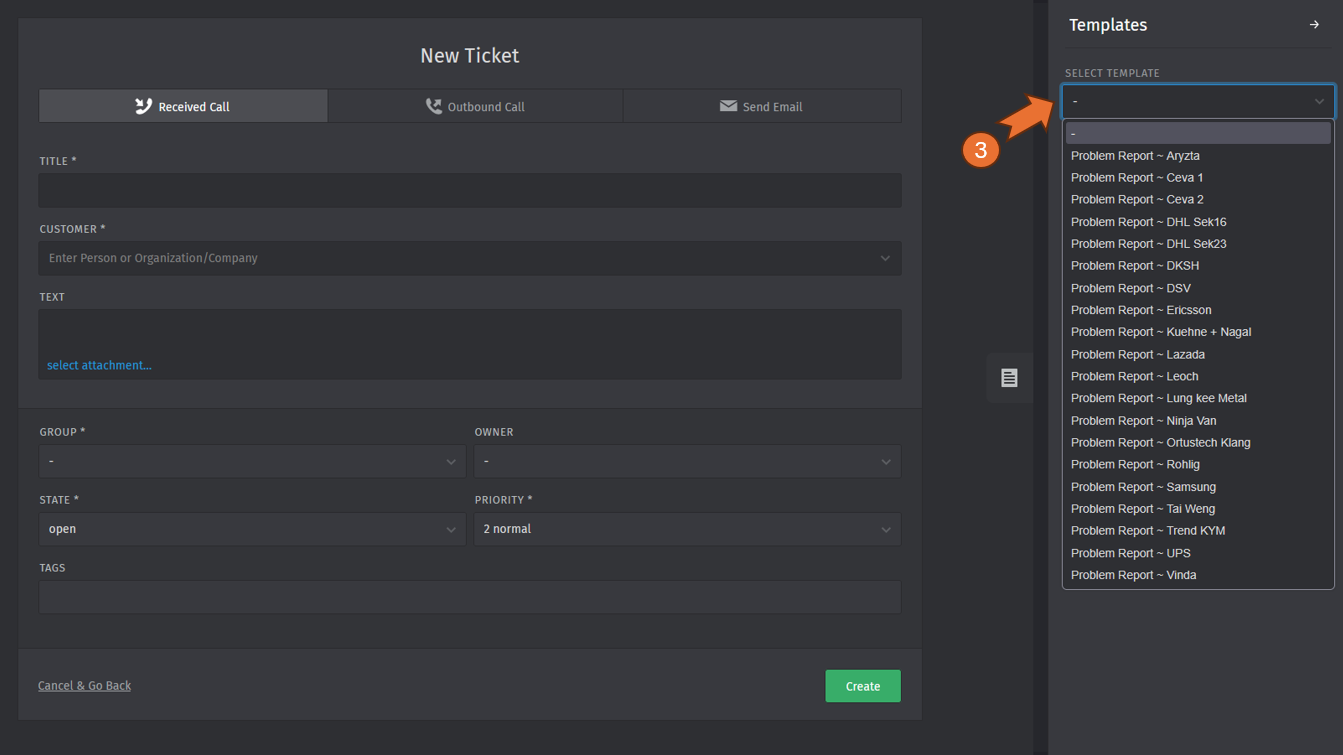
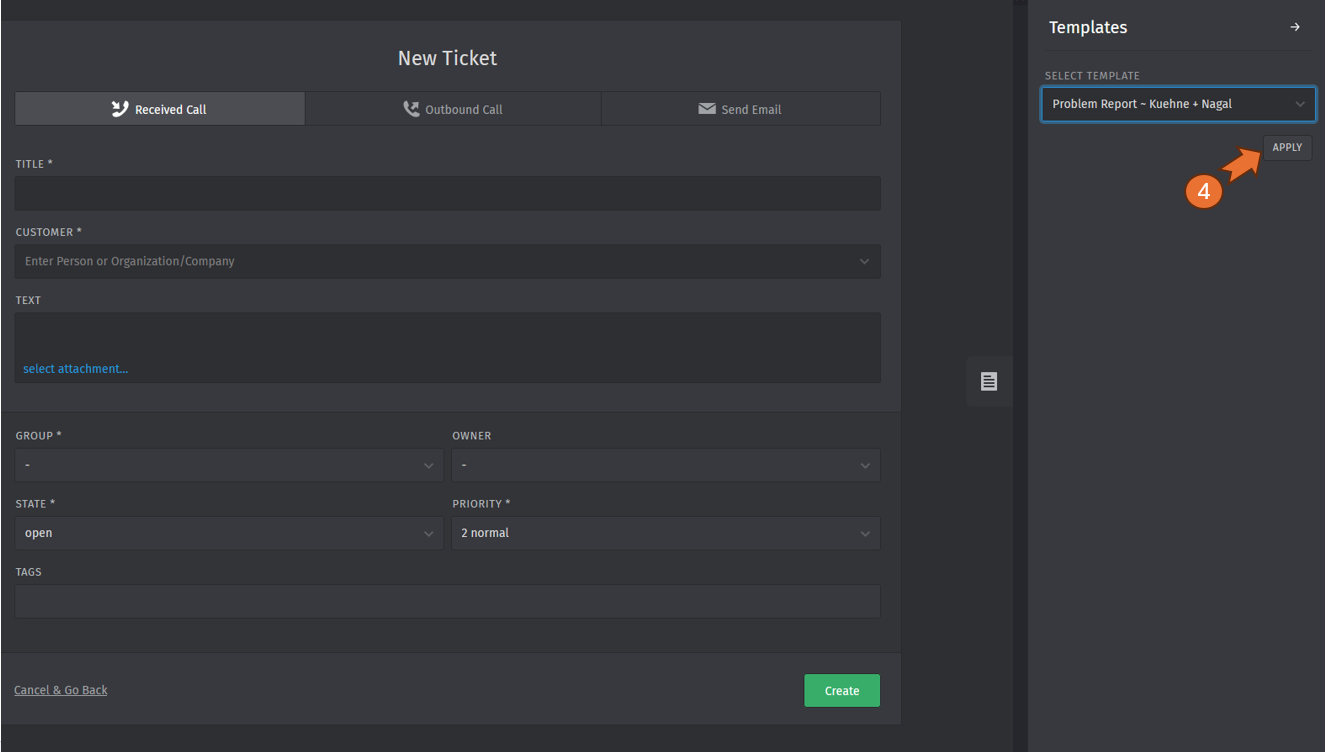
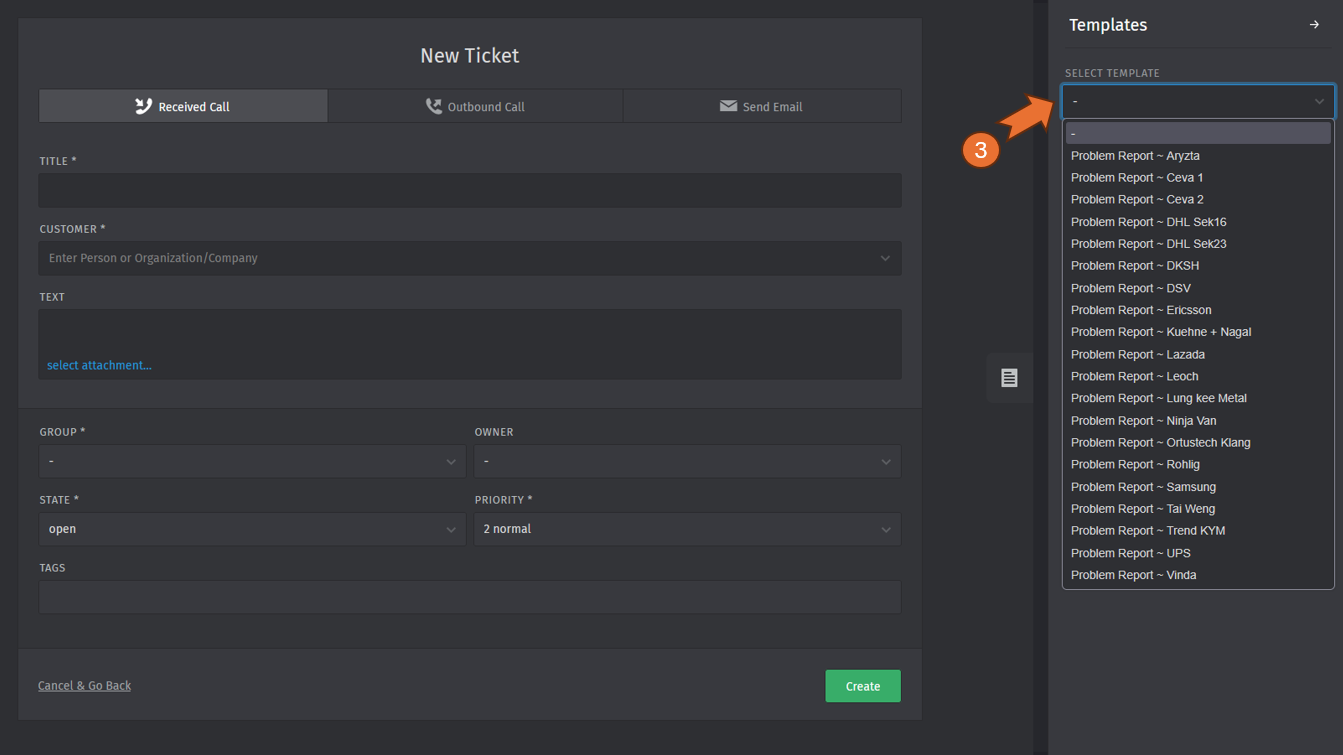
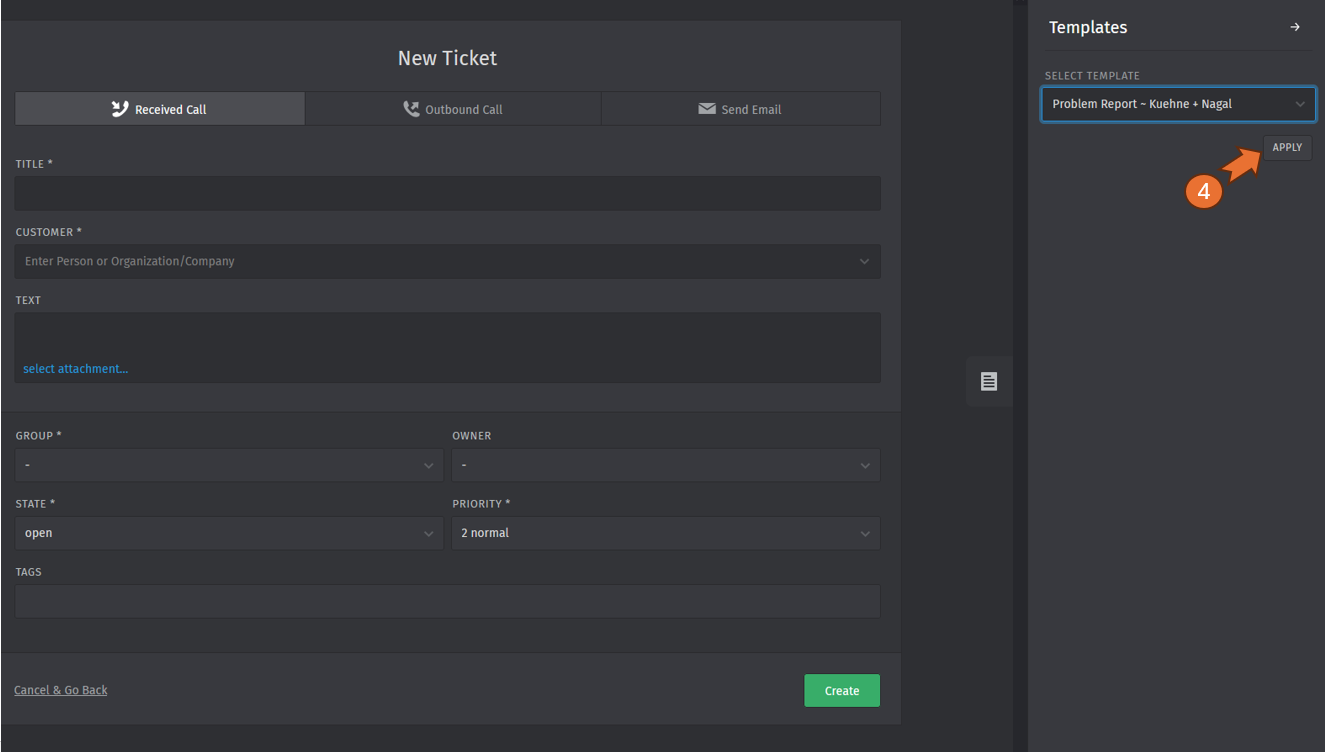
Select the templates by property name and
applyclickit.the button " Apply".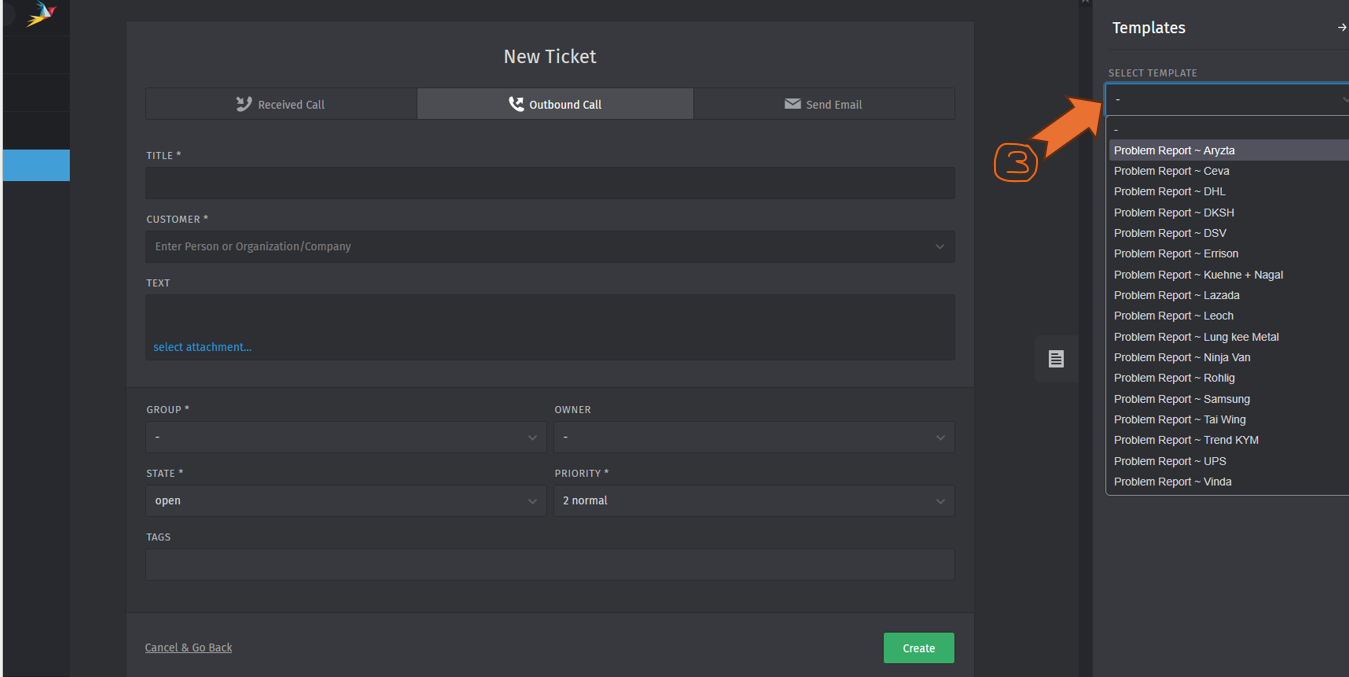
-
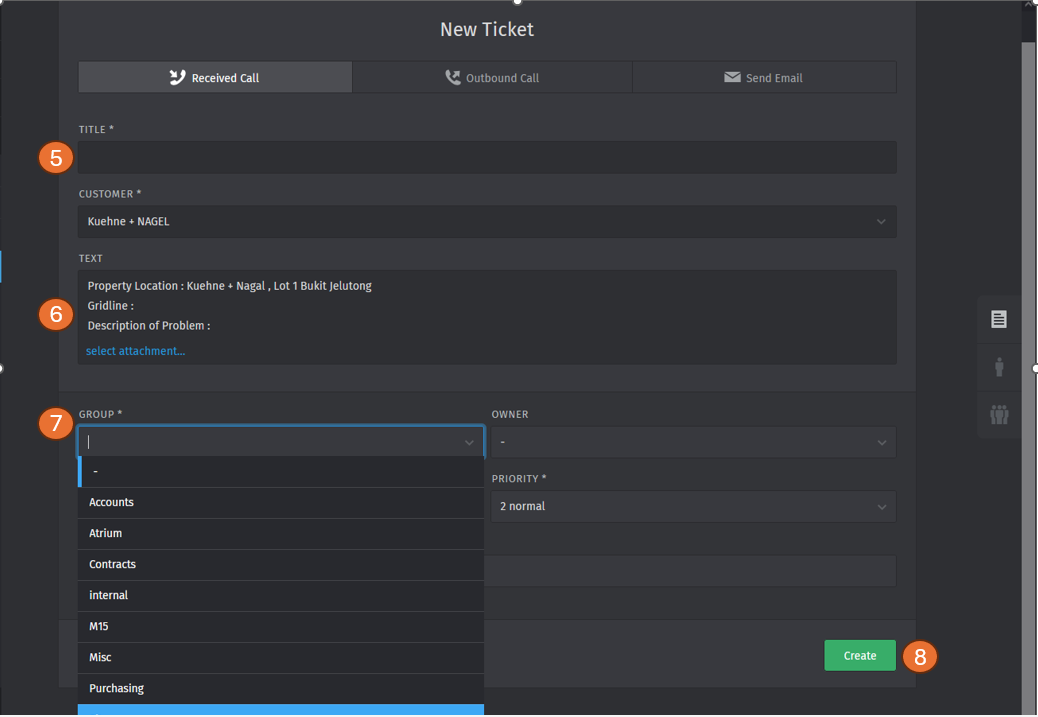
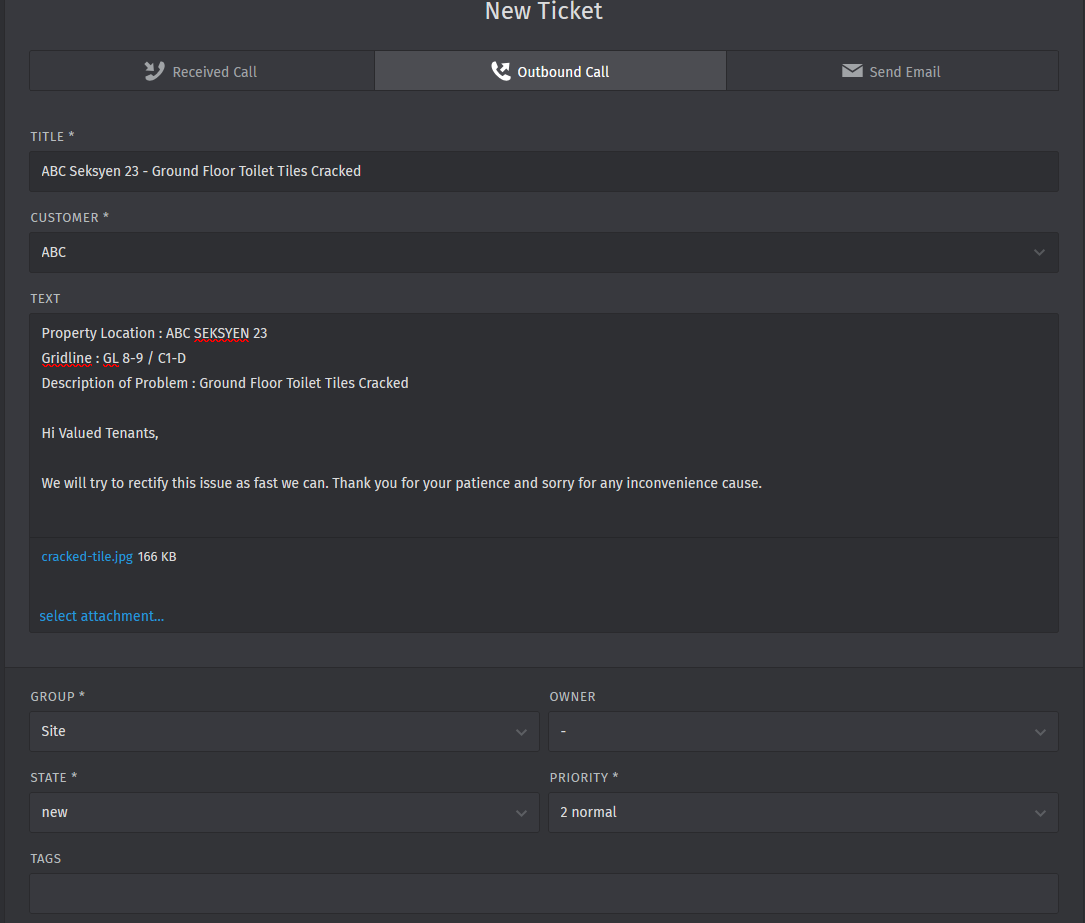
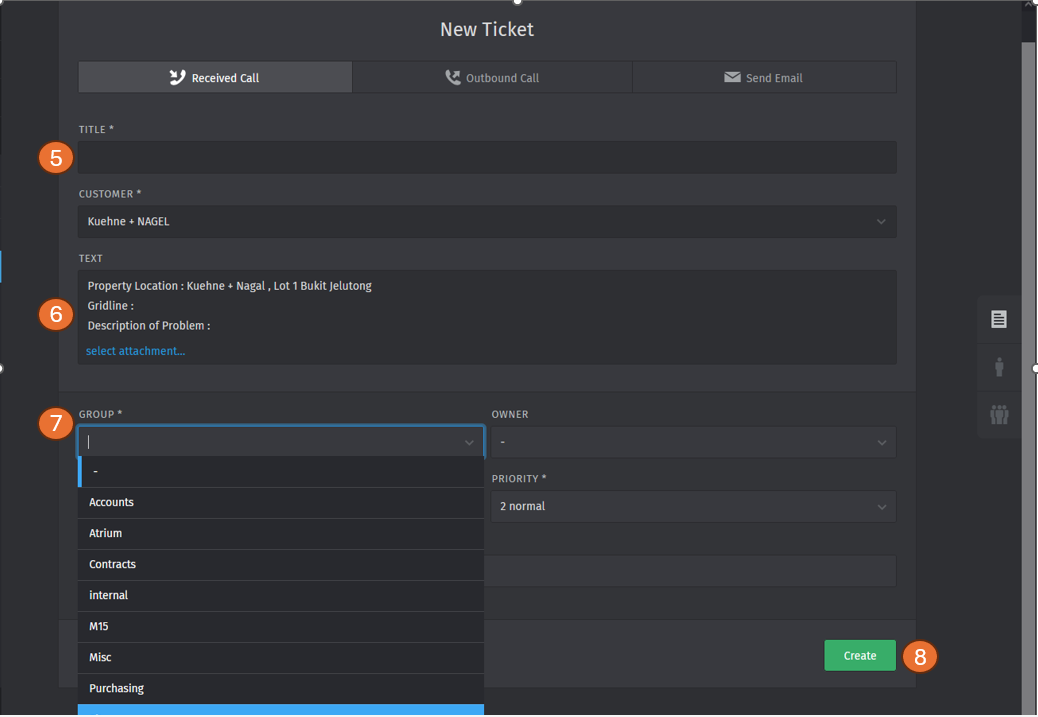
Fill in the title,
property location ,grid-line , description of problem andattached withupload the supporting documents or photo (if any) -
EnterClick theCustomerdrop down button in the group bar to reveal the option and selectthe group (exp: Site / Contract / Accounts etc)
it.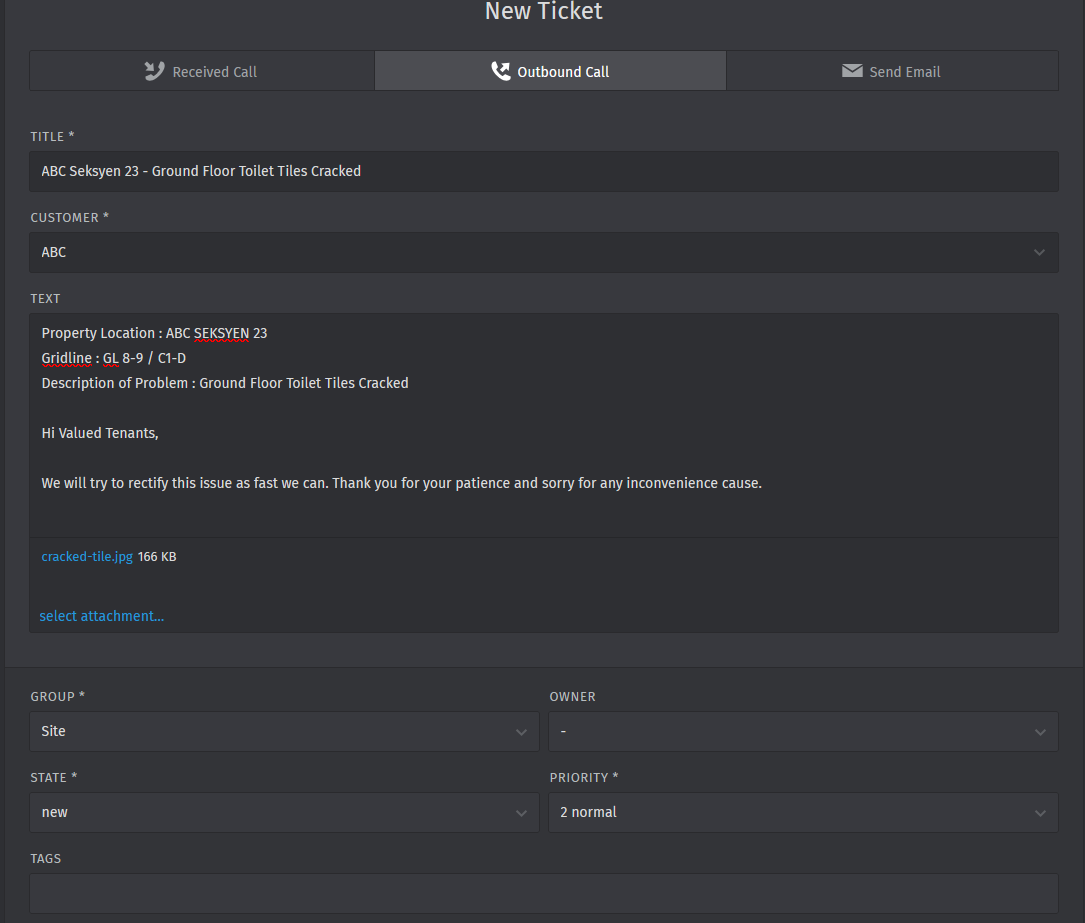
- Click the "create" button
onceforcompleteticketstepcreation5 and step 6..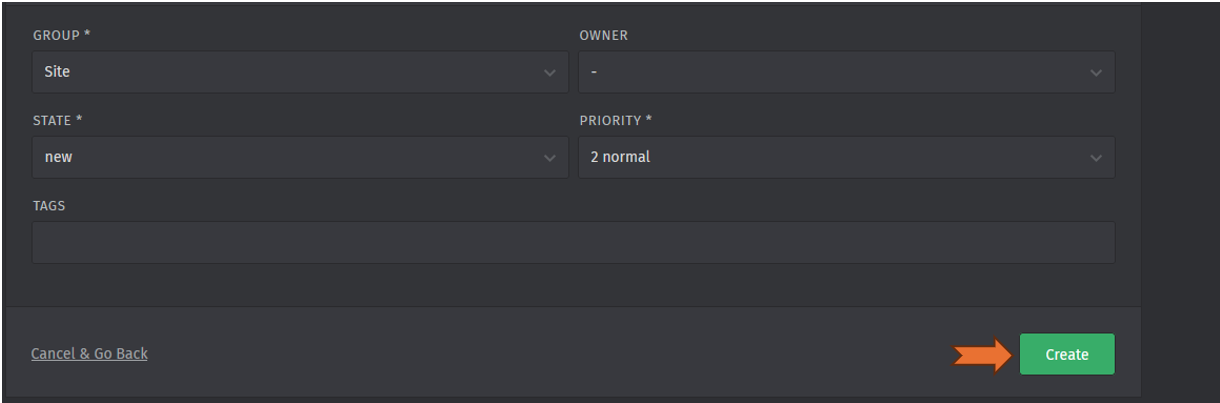
3.0 How to find your ticket and update
Please follow the step below to find and update the ticket.
- Go to the website https://helpdesk.gloryblitz.com.my/#login
- Sign in with your user ID and password
-
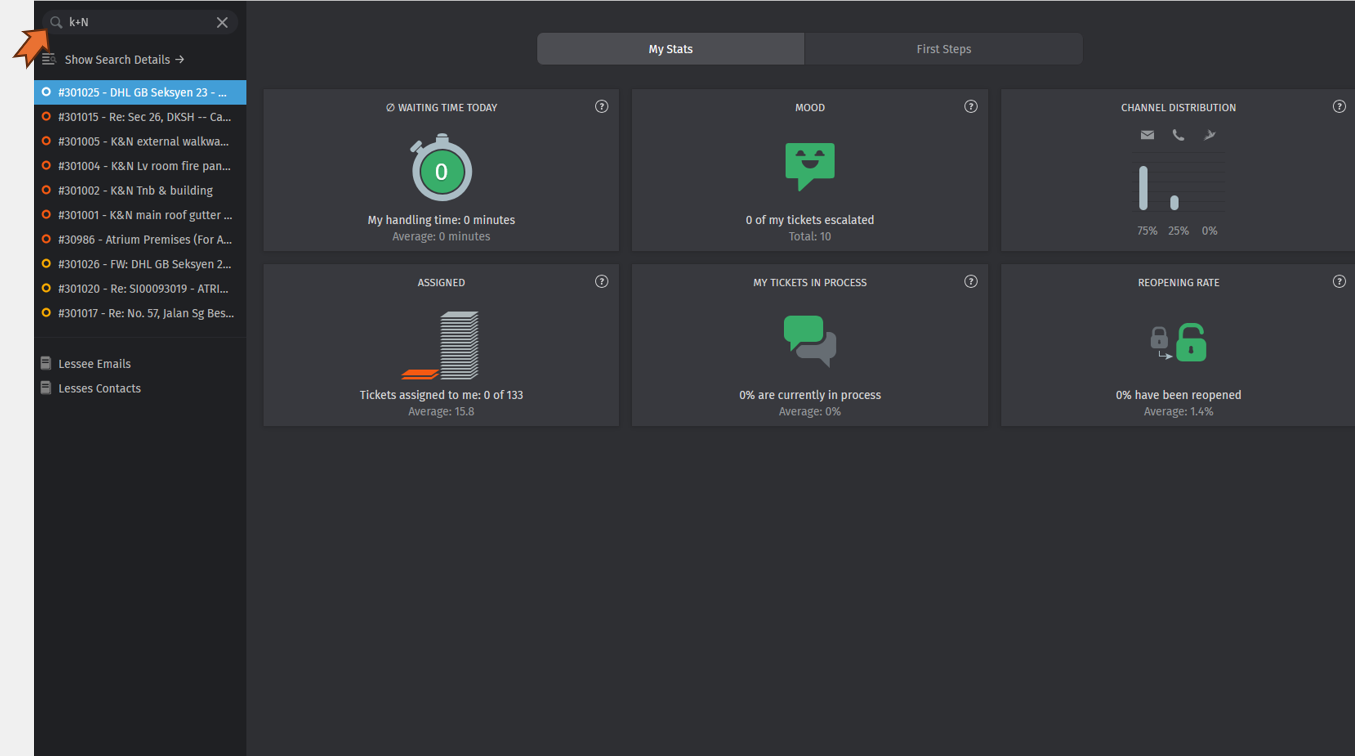
GoUsetothe search barandto find the ticket (can search by description of problem / ticketnumberno. /customerCustomernameNameetcetc)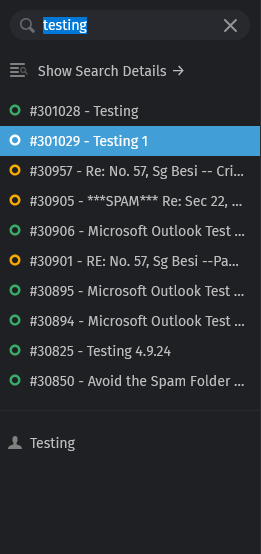
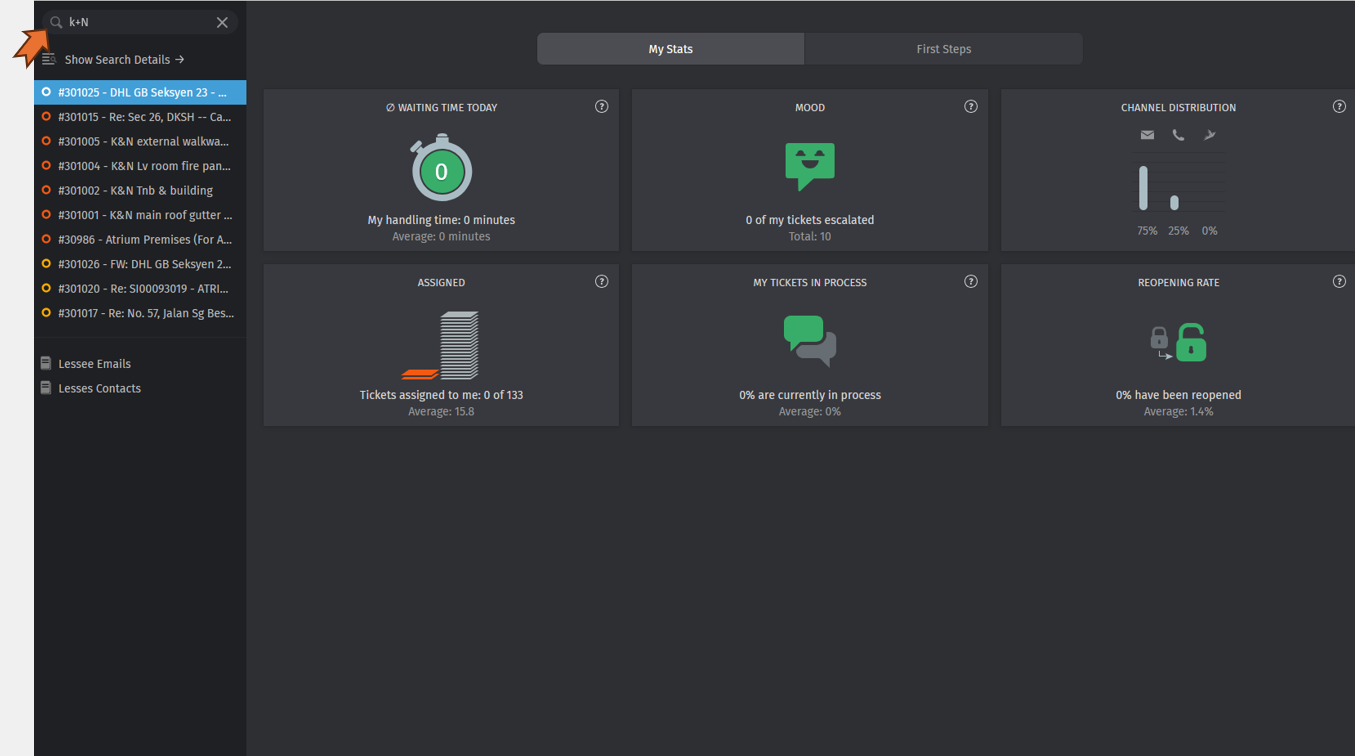
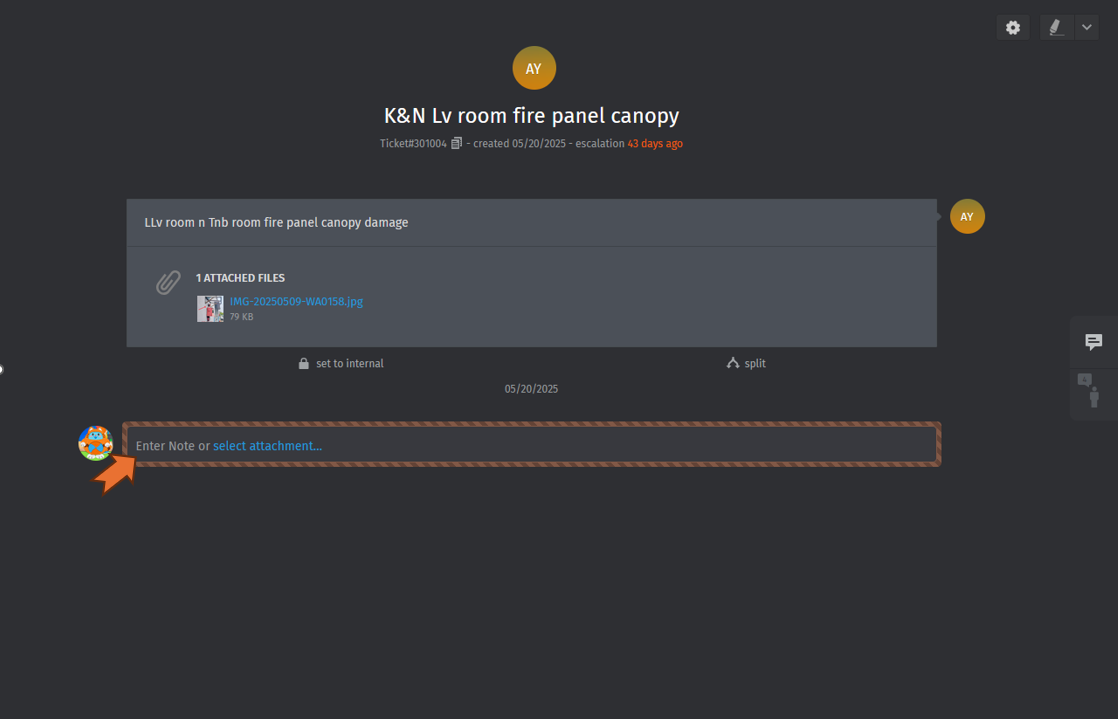
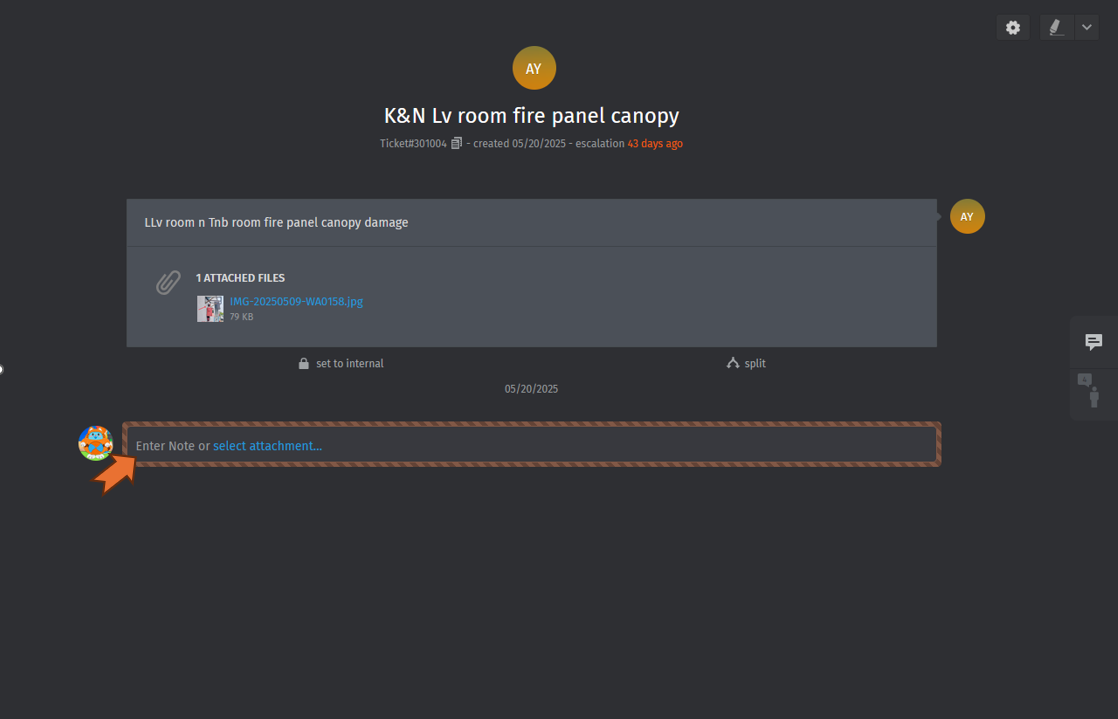
- Select the ticket and enter note or
attached withupload the supporting document / photo (if any)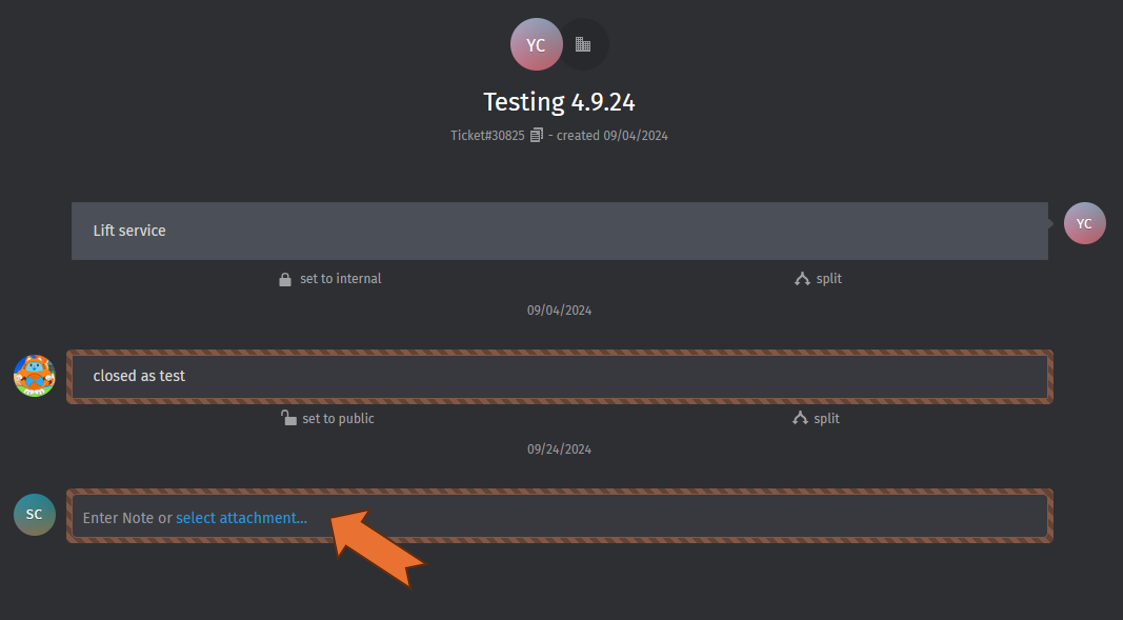
-
Press the
keyboard"keyboard " Enter" once complete the step no.44..